Category

Showing posts with label Script. Show all posts

Wednesday, August 5, 2015

Optimized QVD load

QVD ( QlikView Data) file is a powerful feature of QlikView. QVD is a native QlikView format. It can be only written or read from QlikView. The file format is optimized for speed when reading data from a QlikView script but it is still very compact. Reading data from a QVD file is typically 10-100 times faster than reading from other data sources.

Few advantages of using QVD files include:
  • faster load times
  • Less overhead on Database servers and networks
  • Portability across QlikView applications
  • Incremental Load

Now, lets look into optimized QVD loads. Optimized QVD loads are muck quicker than non-optimized ones. During optimized QVD load, the data is directly sent from disk to RAM memory in the same format. Optimized QVD load is one of the important step in optimizing QVW reload performance.

Optimized mode can be utilized only when all loaded fields are read without any transformations , though the renaming of fields is allowed. A WHERE clause causing QlikView to unpack the records will also disable the optimized load. However, simple Exists() function on a single field is allowed.
Some of the operations that can make QVD load non-optimized are
  • Join 
  • Mapping load 
  • Derivations / calculated fields 
  • Where clause
Things that are allowed in optimized QVD load are
  • Renaming the fields 
  • simple exist() function on single field to filter the records 
Optimized QVD load is indicated in Script Execution Progress window. "qvd optimized" text is displayed whenever QlikView uses optimized QVD load to read the QVD file. However, "qvd optimized" text does not appear in log files.


Sunday, April 20, 2014

Qlikview Script from QVD Files

QlikView stores some metadata with qvd files in the qvd header section. This information is in the form of XML and includes name of thw qvw that generated qvd, field headers, length, format etc.
Along with this information, you will also find code that is used to create the qvd file like Load, SQL select statements and store statements along with database connection string.
There are 3 ways to get the script code from the qvd files.

Text editor: 
If the QVD file is moderately small size, you can simply open the  QVD file with Text editor like NotePad++ and look out the contents of the QVD file.  The file starts with xml version info followed  <QvdTableHeader> which marks beginning of the header section.
At the end of the header section, SQL statements, Load, Store statements and data base connect statements are enclosed between <Statment> </Statement> tags and <LineageInfo> </LineageInfo> tags.
Please be careful before opening any huge QVD file with text editor as it may freeze the system. The other options mentioned below are ideal to huge QVD files.

QlikView Desktop:
Click on Table Files in script window and select the QVD file. Once dialog window opens with QVD preview, select Xml radio button. Under the tables section, select  QvdTableHeader/Lineage/LineageInfo to view the code.
QVD import window

EasyQlik QViewer:
As mentioned in one of my earlier post, EasyQlik QViewer is an useful tool to view QVD contents.
Open the QVD file with EasyQlik QViewer tool and navigate to View -> File Metadata. It pops up a File Metadata window and displays the code.


Feel free to comment, if you are aware of any other method to get the code from QVD files.

Thursday, April 3, 2014

Partial Reload for Fast and Selective Reloads

How many times you have loaded huge application for hours and realized you either missed a table or need to reload data in a table. But, refreshing the application takes long time. This is where Partial Reload comes into play.
Partial Reload allows Qlikview applications to add or replace selective tables into the data model while retaining already existing tables unaffected. Due to selective tables load, full reload is eliminated and reload becomes faster.

Partial Reload option is available File menu option or invoked using Ctrl+Shift+R shortcut key.

This command executes only those load and select statements that are preceded by a replace or add prefix. Other data tables remain unaffected by the command. 
Note that, It also executes any other statement (excluding normal load and select) in the script such as drop, join, keep etc.

Let's look at the usage of 2  prefixes:
add load, replace load examples
ADD  - This prefix is used to add ( or create) a new table to the existing data model.

REPLACE - This prefix is used to replace an existing table in the data model. New table name should be identical to the existing table name. If the table does not exist already, new table is created and added to the data model.

ADD/REPLACE load statements are treated just like any other load statements during regular reloads. By using ONLY keyword we can restrict ADD/REPLACE load statements execution to partial reloads only. During normal reloads these ADD ONLY / REPLACE ONLY load statements are ignored.

ONLY example

During Partial Reload, to avoid executing any other statements apart from ADD/REPLACE loads,  we can use IsPartialReload() function. This function returns -1 (True) during partial reload and 0 (False) during normal reload.
During development or testing, if a table needs to added or reloaded without affecting other tables in the data model, use the code snippet in the first tab of the script.
IsPartialReload() example

We can also use  IsPartialReload() to execute any Qlikview script statements such as drop tables, drop field to manipulate the data model  or store tables in the qvw into QVDs etc.
IsPartialreload() example -2

Partial reloads are extremely useful during coding and testing phase of Qlikview dashboard. It saves lot of reload time, makes debugging and testing faster.


Saturday, December 7, 2013

QVS file - Reusable Qlikview Scripts


qvs (QlikView Script) files allows  developers to store QlikView load scripts into a external script file. The external script (qvs) file can be referred in multiple qvws.  Usually, script file with QlikView Script code is saved with .qvs extension. However, the file extension does not matter.

It always a good practice to store common script code into qvs files and include the script files in required qvws.
e.g: Calendar table code is often same in most of the Qlikview dashboards. Instead of replicating the same script in each and every dashboard, the Calendar table script can be stored into a qvs file and same can be referenced in required Qlikview applications.
This practice removes duplicating the same code in multiple applications and makes the maintenance easier.  Any update to code are made in single place eliminating redundant effort. Also, Qlikview application script now looks cleaner.

include or must_include statement is used to refer the external qvs files in Qlikview applications.
e.g:
Include examples

 $(include=load_script.qvs);
 $(must_include=load_script.qvs);


While script execution, Qlikview will replace the include statements with the code from the external qvs file.

While INCLUDE and MUST_INCLUDE serve the same functionality the major difference is must_include aborts the execution if the Qlikview cannot locate and load the external script file, while "include" statement skips the statement and moves onto next statement.

I usually use Notepad++ to edit the QVS files. Since, qlikviewaddict has developed custom language definitions for Notepad++ editor for Qlikview scripts with syntax highlight, auto-completion and tool tips feature. Refer my post for more details.

Saturday, July 13, 2013

CSV Reports from Qlikview Dashboards

I recently came across a requirement where in the client wanted us to automate daily email delivery of a csv/excel file containing data of a straight table from one of the Qlikview app. Obviously, Qlikview publisher has the capability to create and email pdf reports from Qlikview apps, but it does not have options to create csv/excel reports. We started evaluating multiple options to achieve the requirement.

We coded a macro to export the table into excel file and created a trigger to execute macro code on Post Reload of the app and later use a batch file to email the excel file using sendemail.exe .


The trigger appears to work when the app is refreshed manually through Qlikview desktop. However, when the refresh is triggered through publisher tasks, the trigger doesn't work.

After trying many unsuccessful workarounds, we decided its time think other ways to achieve the requirement.
One of the idea that came from my colleague is to create the csv file using load script in the Qlikview app. That sounds simple and does not require any complex macro script and triggers!!

We modified the load script to create a Qlikview table in the app with data required for reporting. Then added store command to save the file with .csv extension on the server.

We created tasks on publisher to reload the app and while reloading the app , it creates a csv file on the server. We created batch file for emailing the .csv report to user and set up the dependency on the app reload and email script using enterprise scheduling tool like OpsWise or Control-M.

The method has its limitation but works like charm for simple requirements. Feel free to comment any suggestions to improve the process or any other ways to achieve it.
There are third-party tools like NPrinting which enables rich and advanced reporting features with excel and many other formats. But, comes with a cost.

Tuesday, March 12, 2013

Auto Generate Sample Scripts

Qlikview provides a sample script, that can be used to create several dummy tables and test app.
This feature is useful when you are planning to practice creating Qlikview charts, tables and other visualization objects and you just need some sample data to start with.

To use the Qlikview provided sample script,  follow below simple steps.

1) Go to File --> Script Editor  or Press Ctrl + E
2) Click on Insert  ->  Test Script or Press Ctrl + Q twice


This will insert sample script in script editor. Save the app and reload to run the script.
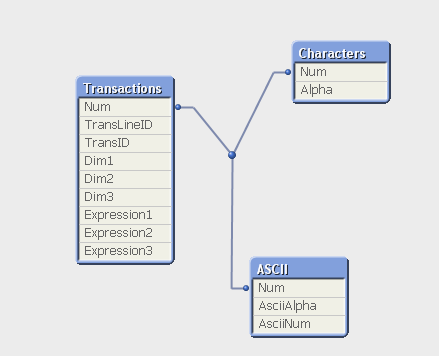
Once the script excution is Click on File --> Table Viewer or Press Ctrl + T to open the Qlikview data model.


Now the script and sample data is ready, you can start creating charts and tables for the app.


Please keep in mind that the script generated by Qlikview heavily relies on rand() function for generating data and does not use any other source.

Tuesday, February 12, 2013

Alternative to Count Distinct

Count distinct "Count( Distinct <Field Name>)" is an expensive expresssion in Qlikview. Whenever used, it turns Qlikview to use single core instead of multi-cores resulting in slow performance of the app.
By making a small change in data model we can replace COUNT DISSTINCT with SUM function and improve the app performance marginally and increase app response time to users actions.

To achive this add another field in Qlikview table having value 1 along with the field you need to count.

Example:

Bookings:
LOAD
    [Member Id],
    [Booked Date],
    [Transaction Id],
    [Booking Amount]
FROM Bookings.qvd (qvd);

"Member Count":
LOAD
    [Member Id],
    1 AS "Unique Members"
Resident Bookings;

To count distinct members
COUNT(DISTINCT [Member Id]) can be replaced with SUM([Unique Members]).